iPad 3 vs reMarkable 2
For taking notes and reading stuff, without distraction
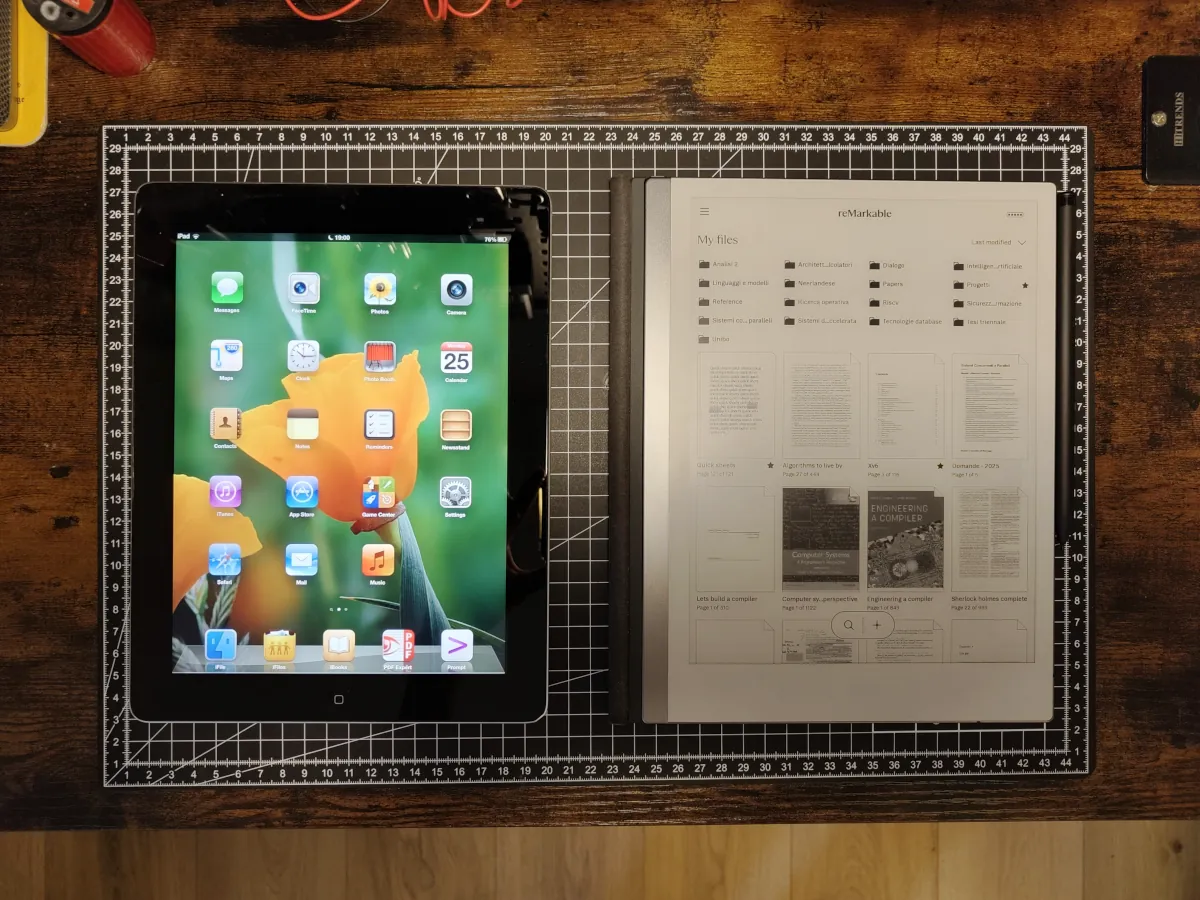
The industry of consumer electronics has had a bit of a shift towards digital health, be that for philanthropic reasons or simply because of trend. If one company decides to introduce screen-time limiting alerts or some other counter measure to save the user from doomscrolling1, competitors will follow for not to look evil.
But to get the real benefits of a distraction-free device, you might not have to look around the latest advancements. In this article we'll be comparing two quite different tablets, both very hackable and that will both serve us the purpose of distraction-free reading.
iPad 3rd gen (2012)
The 3rd generation of iPad launched in 2012 and was the first to get the stunning Retina Display, but weirdly not the first to be advertised as having it. It was only sold for 7 months and quickly discontinued for leaving place to the "iPad with a Retina Display" (the 4th gen), that included a Lightning port and a slightly faster CPU.
The iPad 3 received little love for its legacy 30-pin port, and that is the reason why you can still find many of these units still today on eBay on sale for very cheap. I got mine for around 30€ in April 2024, in perfect conditions and with a pink book cover that i thrashed away immediately. It arrived with iOS 9.3.6, the last version of the operating system supported for it, that runs all laggy on the old device.
I had a plan for that, though, as I've been a strenuous reader of the awesome Legacy Jailbreak subreddit. The steps I went through were:
- Downgrading to iOS 8.4.1 with Legacy iOS Kit
- Jailbreaking iOS 8 with daibutsu
- Installing CoolBooter, an all-in-one dual booting utility for jailbroken 32bit iOS devices
- Installing an iOS 6.1.3 partition next to iOS 8
- Booting iOS 6, that should come already jailbroken!
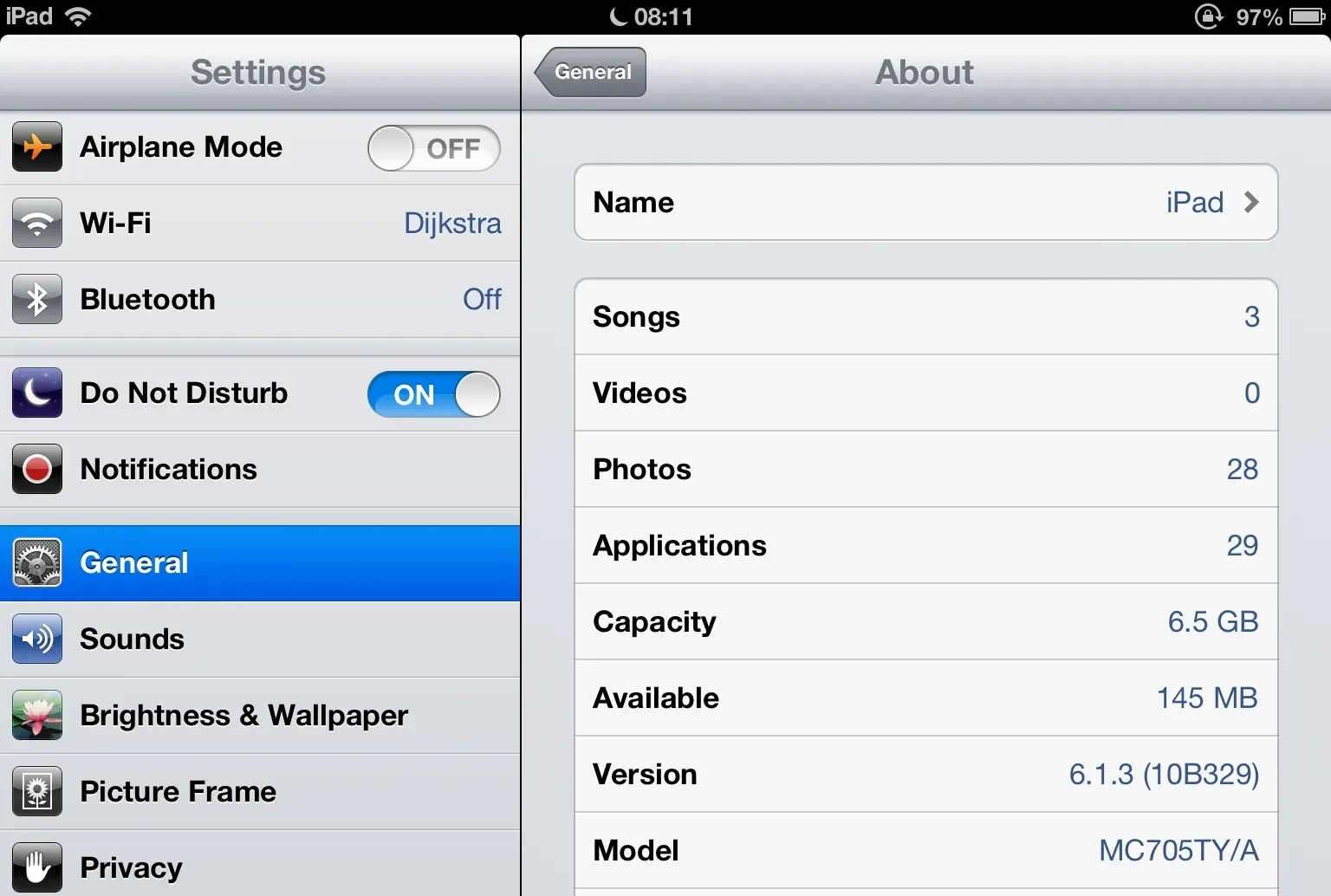
And this is what you need to do to get the best out of your iPad 3! Sure, the new partition can at most let you use 6.5GB of storage, but the charming iOS 6 style with its skeumorphic icons is hard to beat when for the nostalgia and every animation is well curated and the device runs smooth. There are however things that don't run as well on such an old system: first of all is the Web.
Almost no website works on it because the support for SSL/TLS is limited to old cipher suites and certificates. Sadly it is impossible to browse the modern Wikipedia on the iPad 3 without using some sort of proxy. Modern iOS/iPad OS apps are of course not supported, but this is a feature, not a bug. We need this device to be void of distractions. Let's see how to get our completely offline files on this thing!
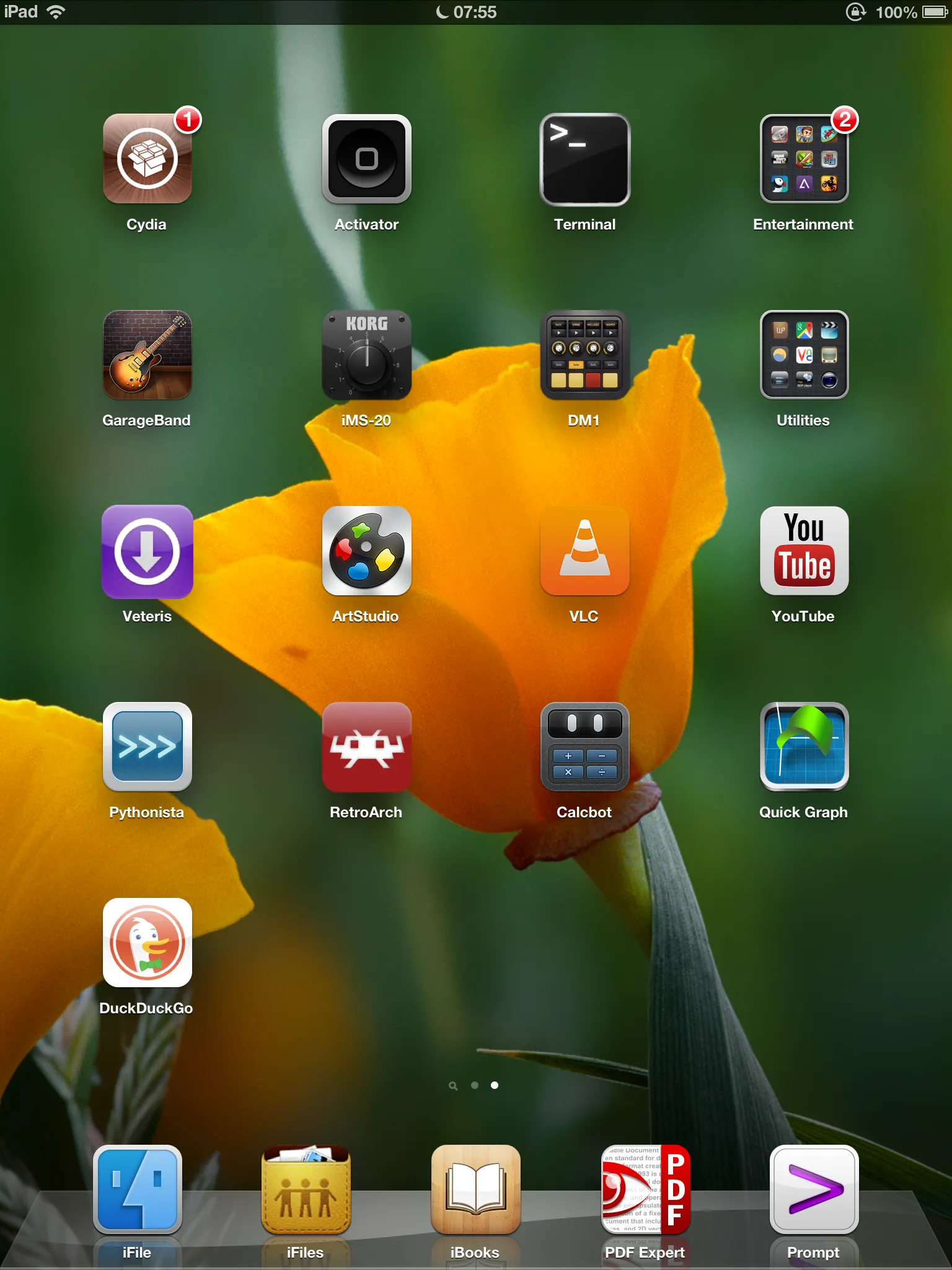
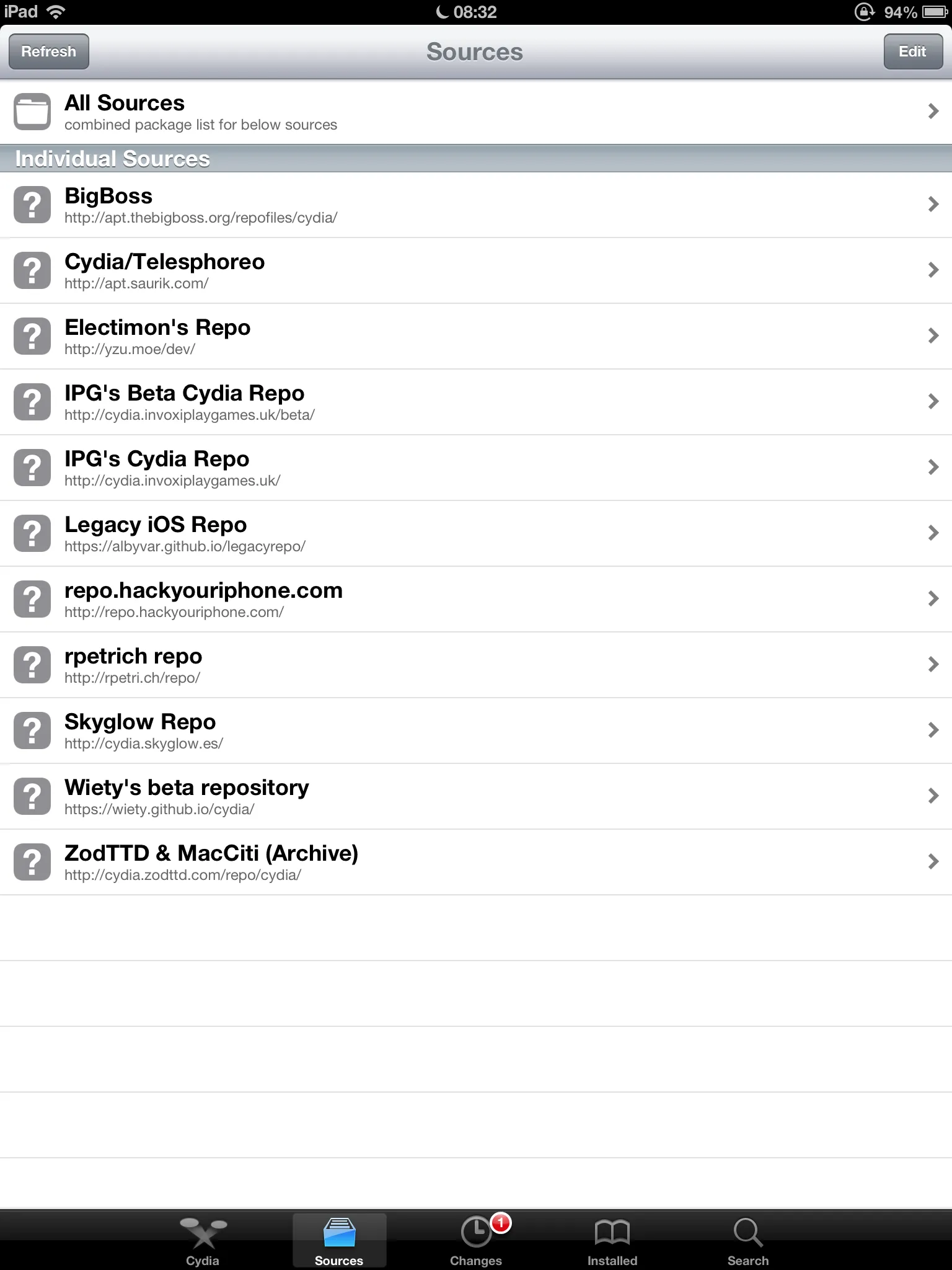
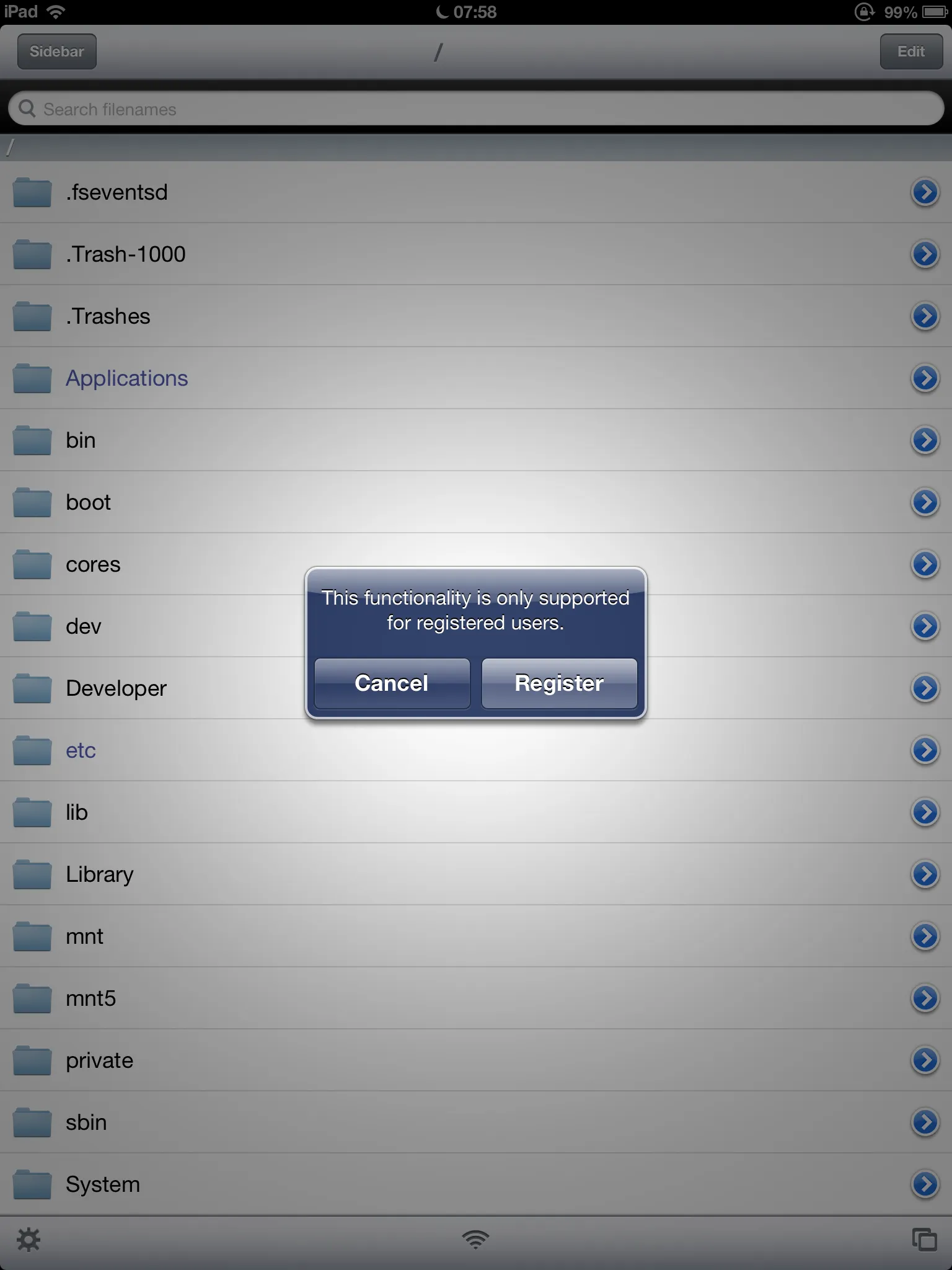
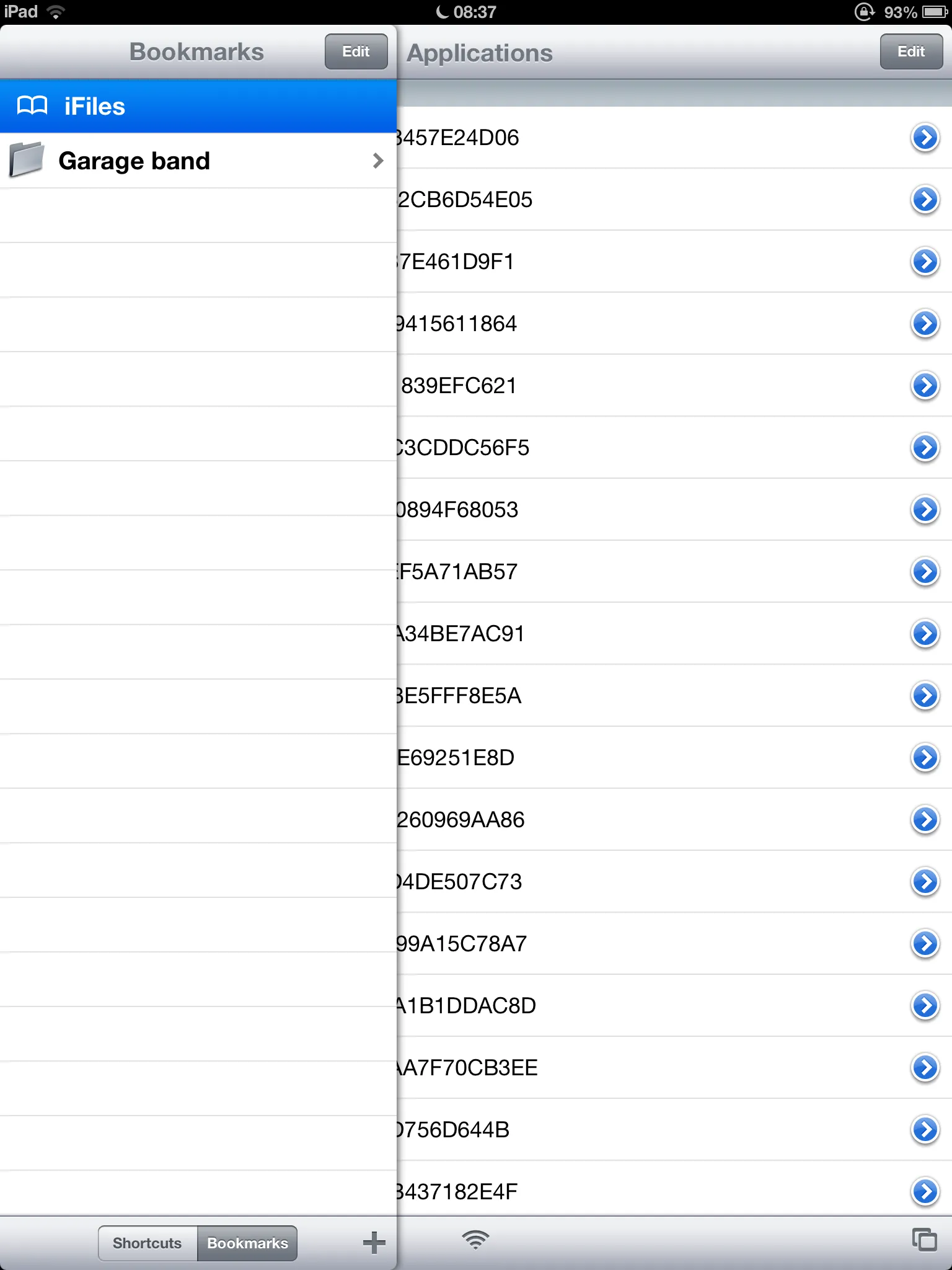
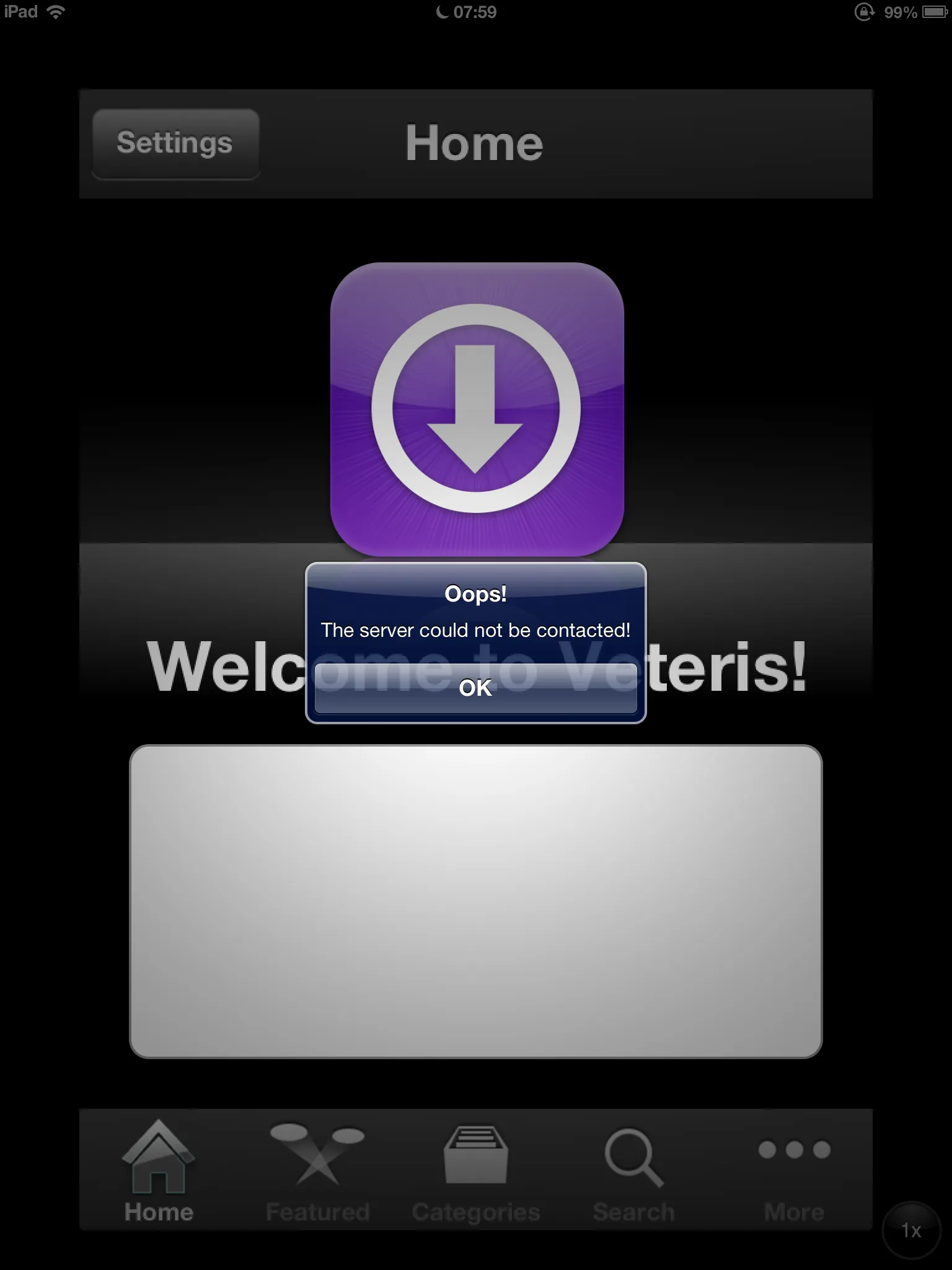
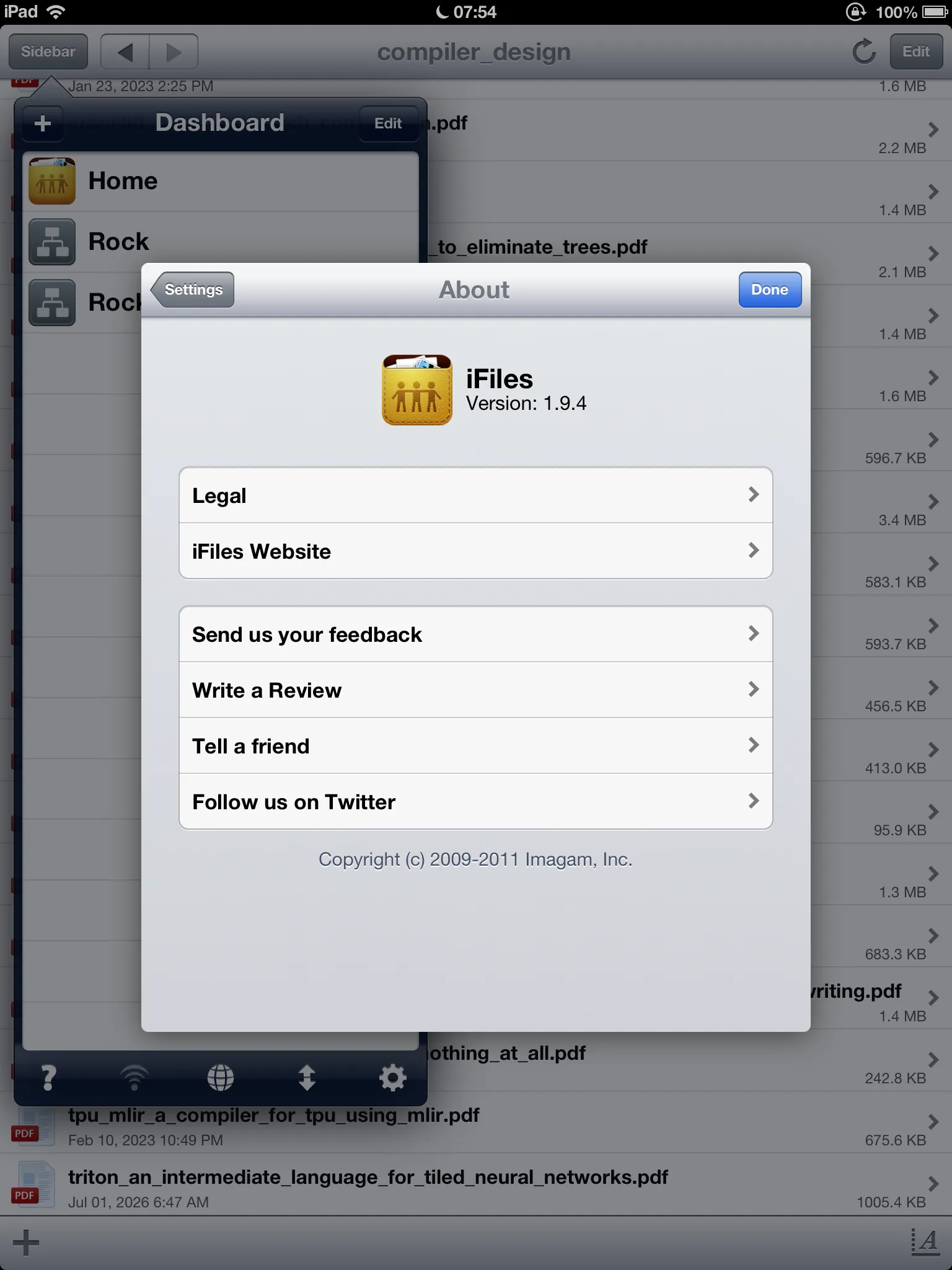
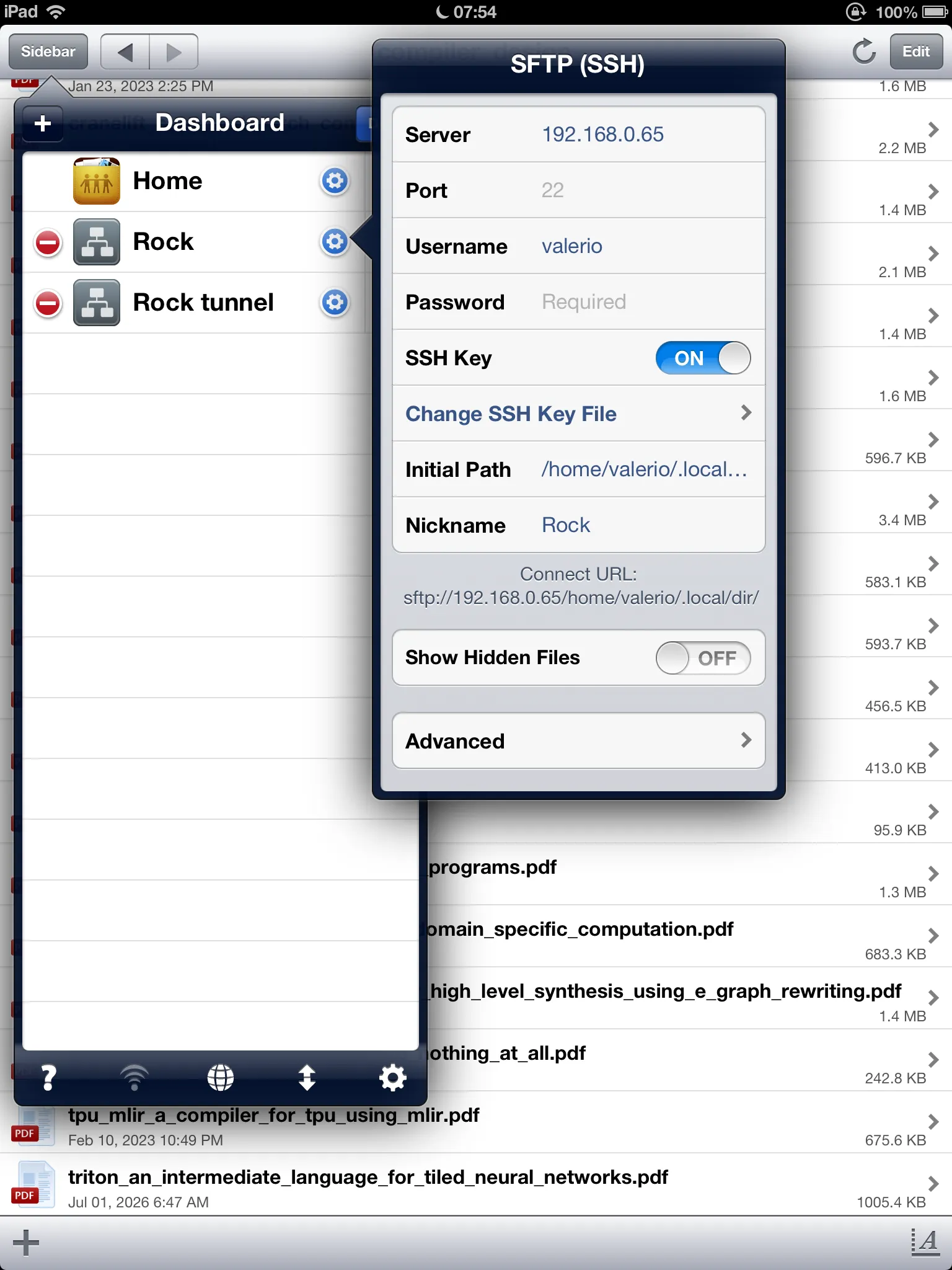
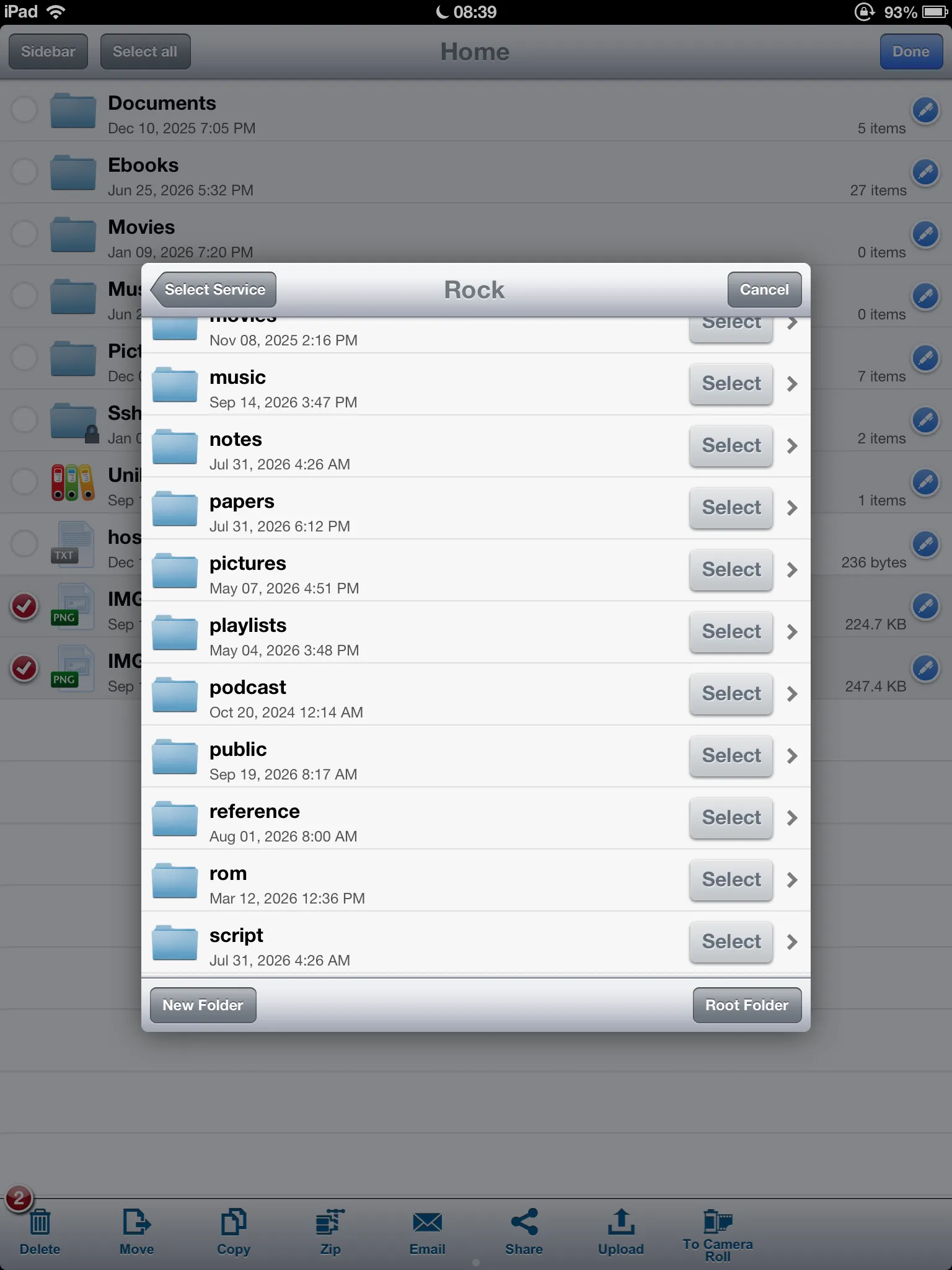
The selection of apps I keep on the homepage is minimal, and the ones in the dock are targeted for reading
iFiles will only use the old key exchange algorithms that iOS 6 supports, we want to choose the least vulnerable one and add it to our Network Attached Storage. I went for Diffie Hellman Group 14, that uses the old SHA-1 hash. This is not a real problem, because we can configure the SSH server on our NAS to match only certain IPs for accepting key exchange with it, editing /etc/ssh/sshd_config like so:
Match Address 192.168.0.22
    KexAlgorithms +diffie-hellman-group14-sha1
Now that we have our files, we want a good PDF viewer for reading them:
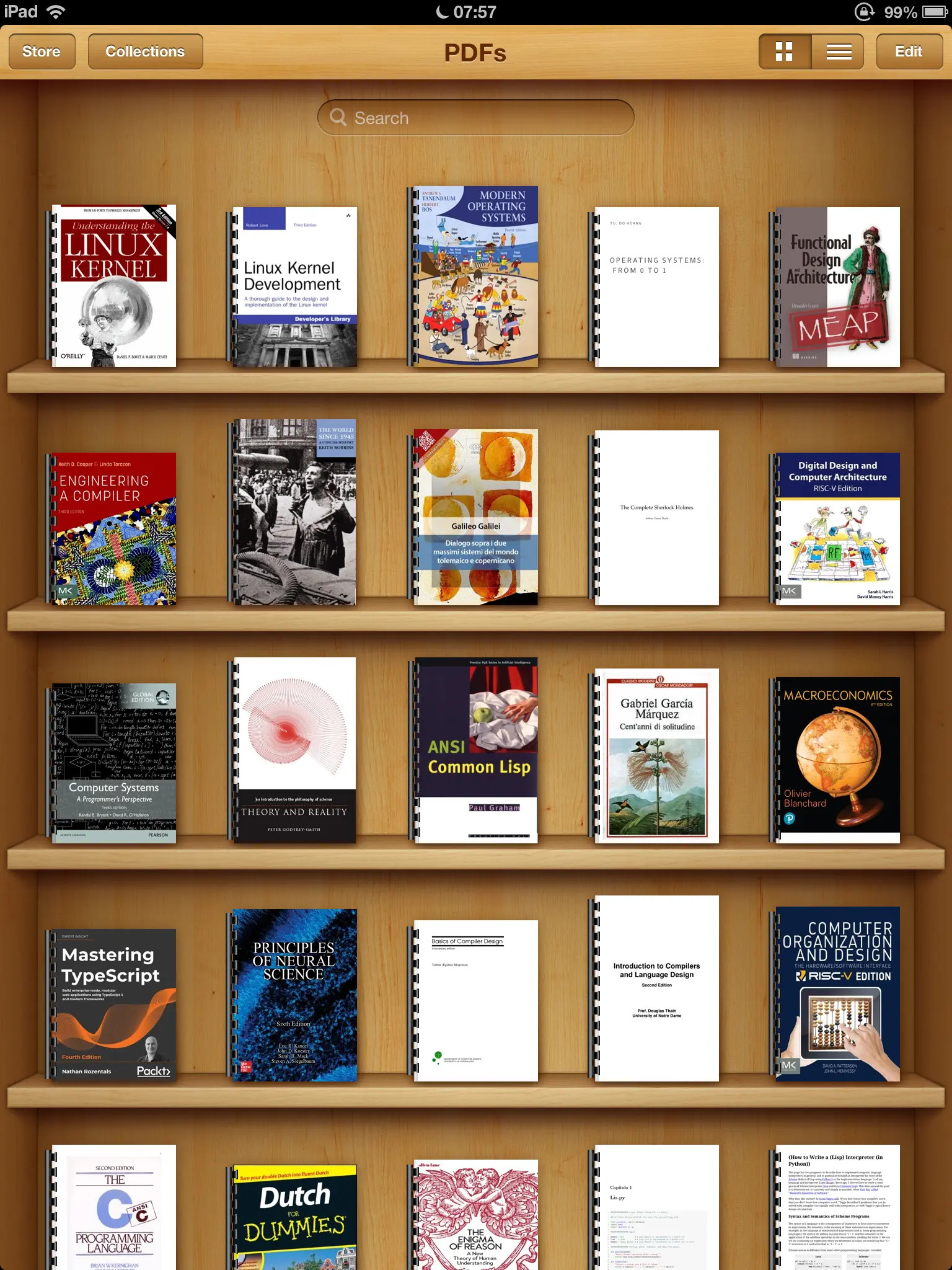
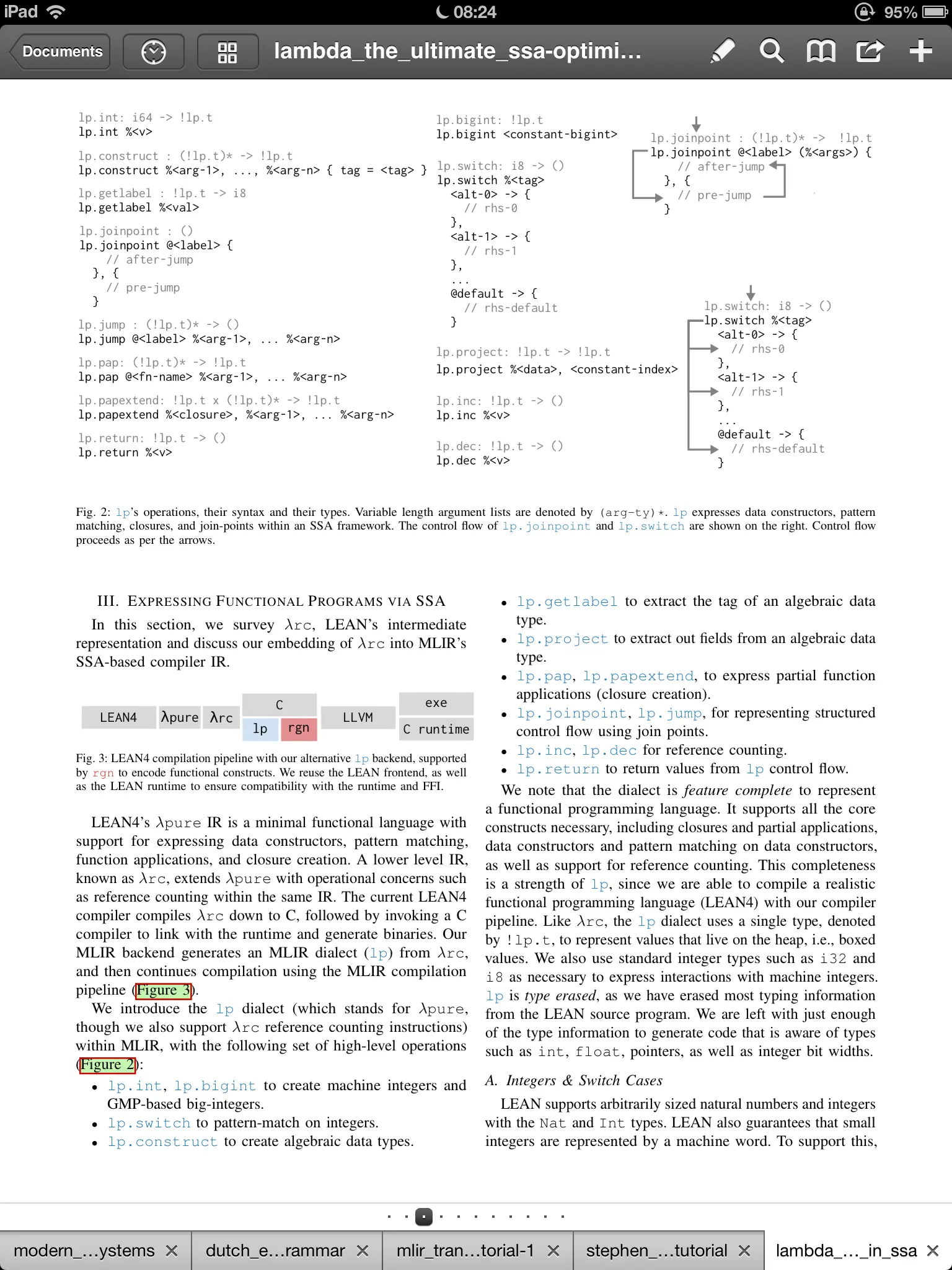
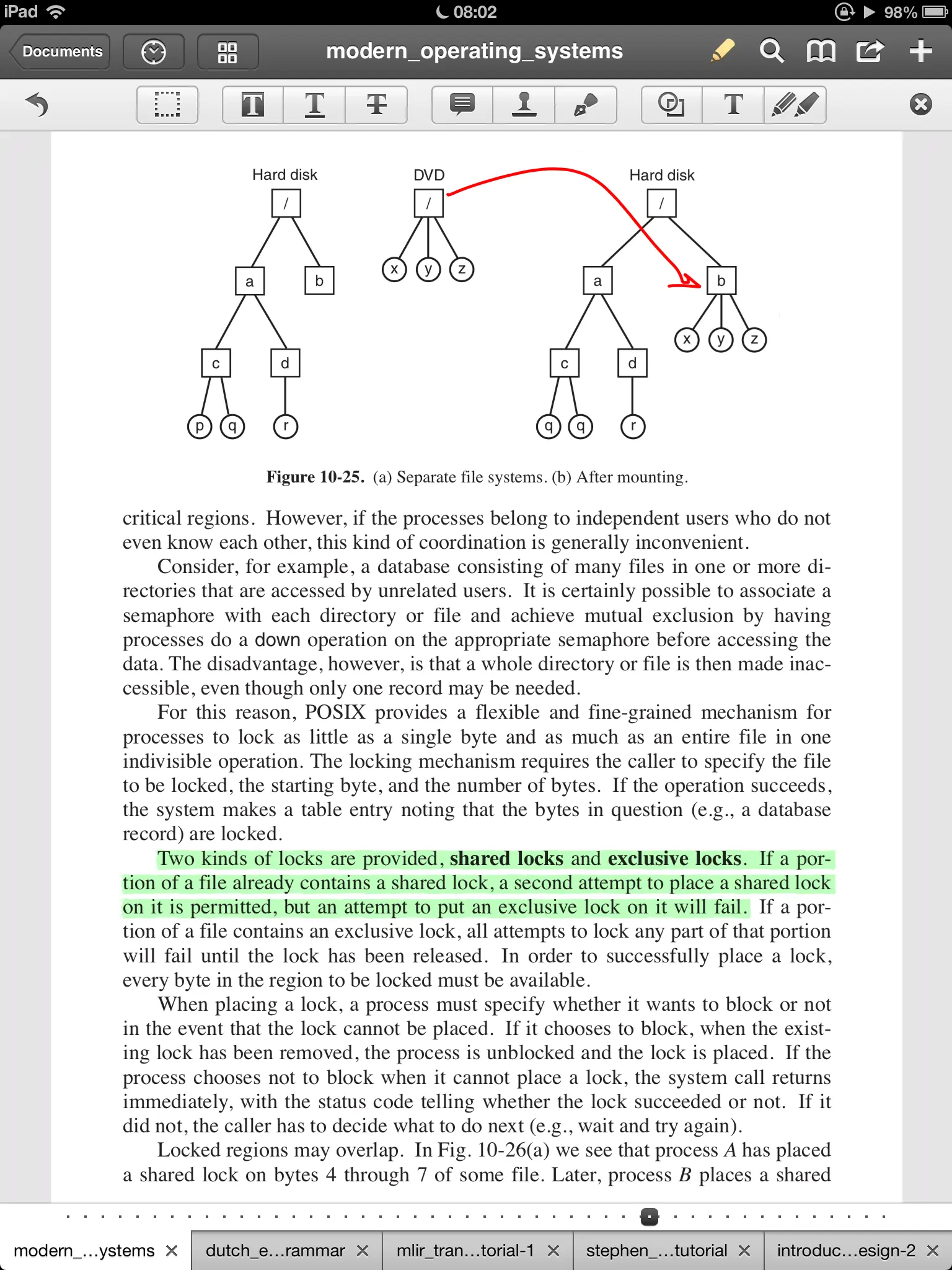
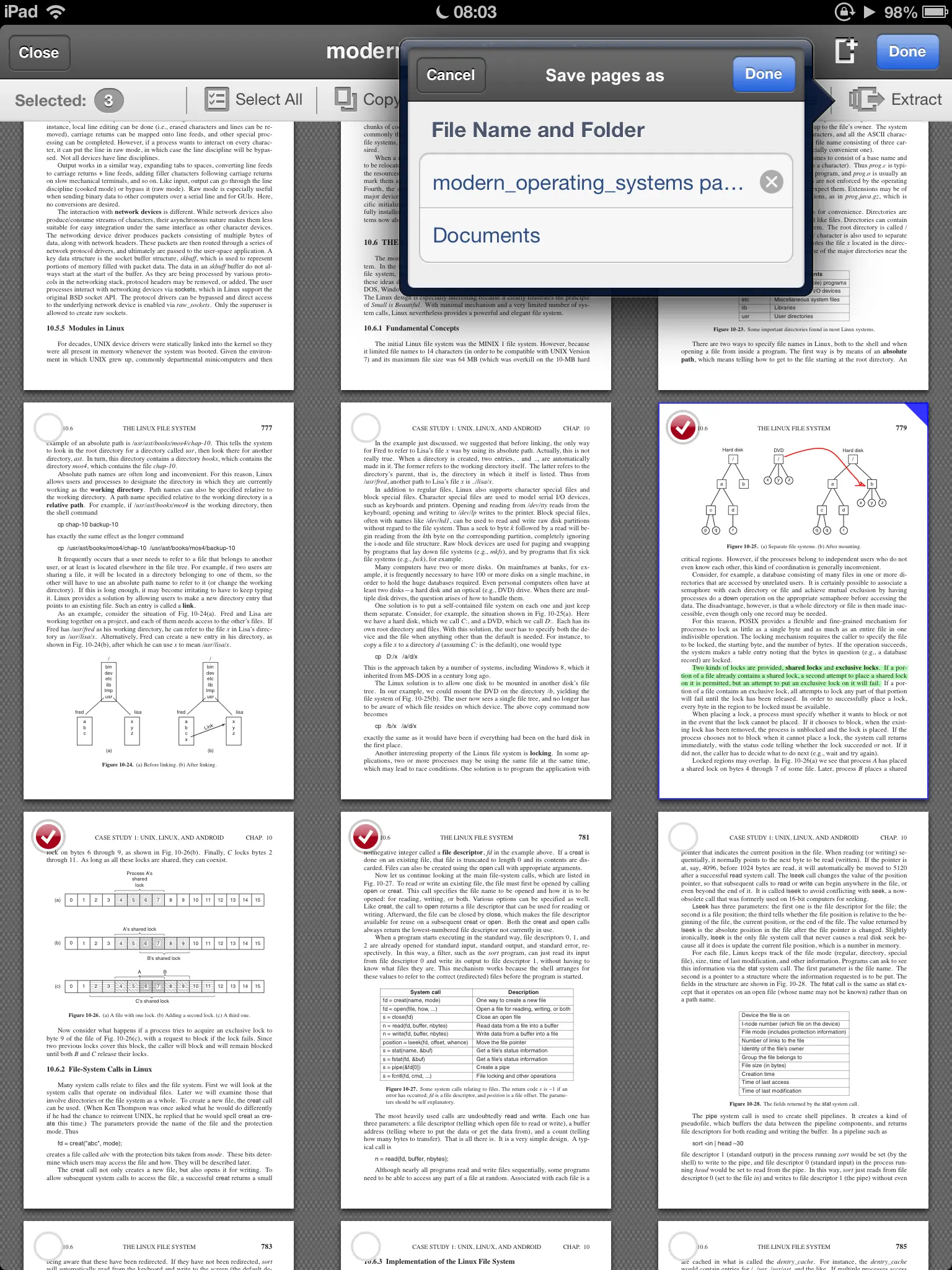
iBooks is the first thoughtful choice: the PDF rendering is amazing, but it lacks annotation features. We can do a little better than that!
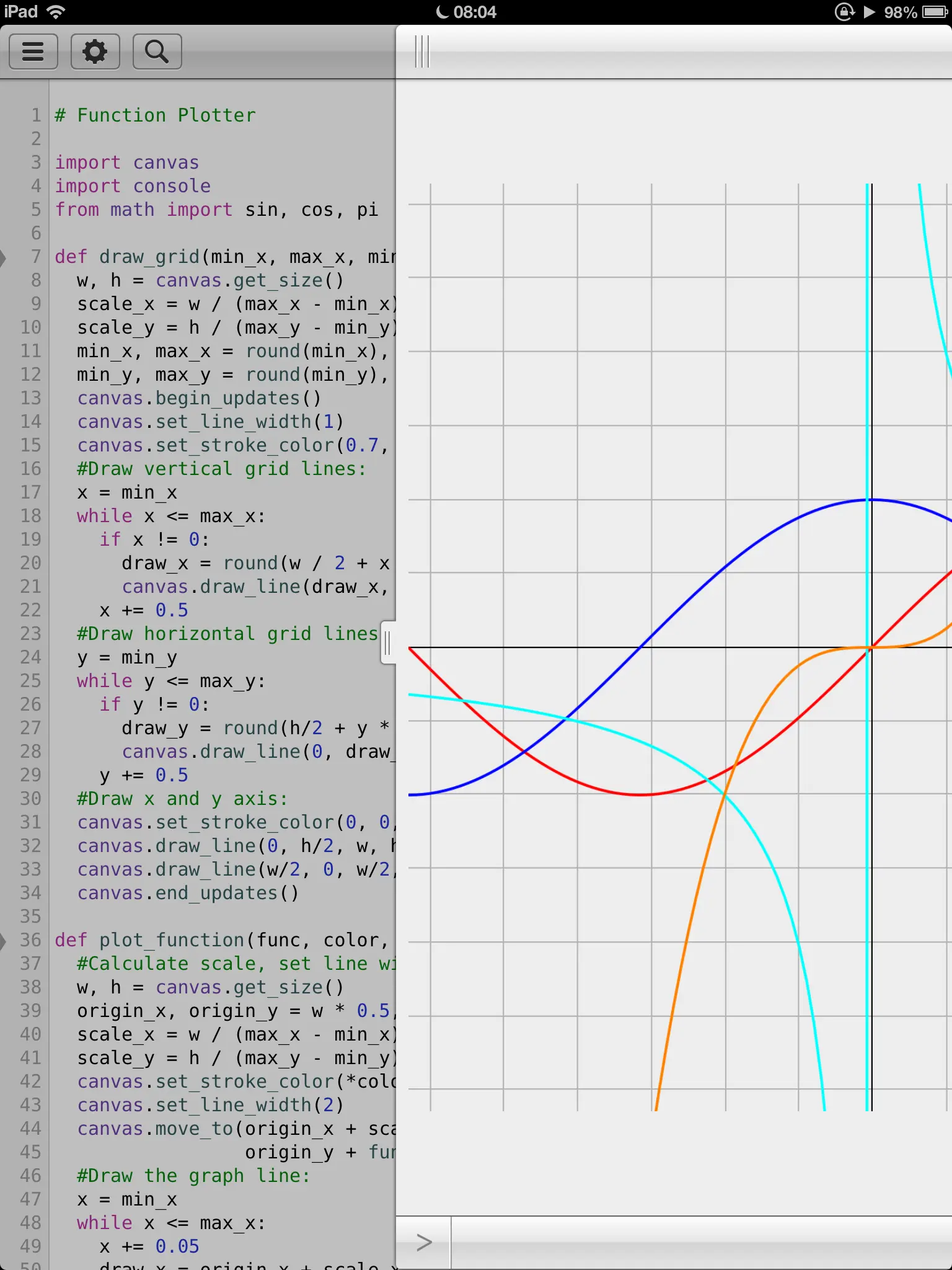
Apart from the above, there are some other tweaks that are really handy to keep installed:
- f.lux: adds a dim night light to the screen. I keep it on also during daytime
- Apple File Conduit 2: allows for mounting our device to a Linux computer with
ifuse - Gremlin Framework: for adding music tracks from iFile to the Music app database. The right playlist can dramatically boost productivity
- Appsync Unified: is a dependency of Veteris, and makes cracked apps work
- Ipa Installer Console: allows you to install cracked apps from the command line
- Open SSH enables the SSH client/server on the iPad
- Local SSH creates an ssh loopback, that makes the local shell available on SSH ports of choice.
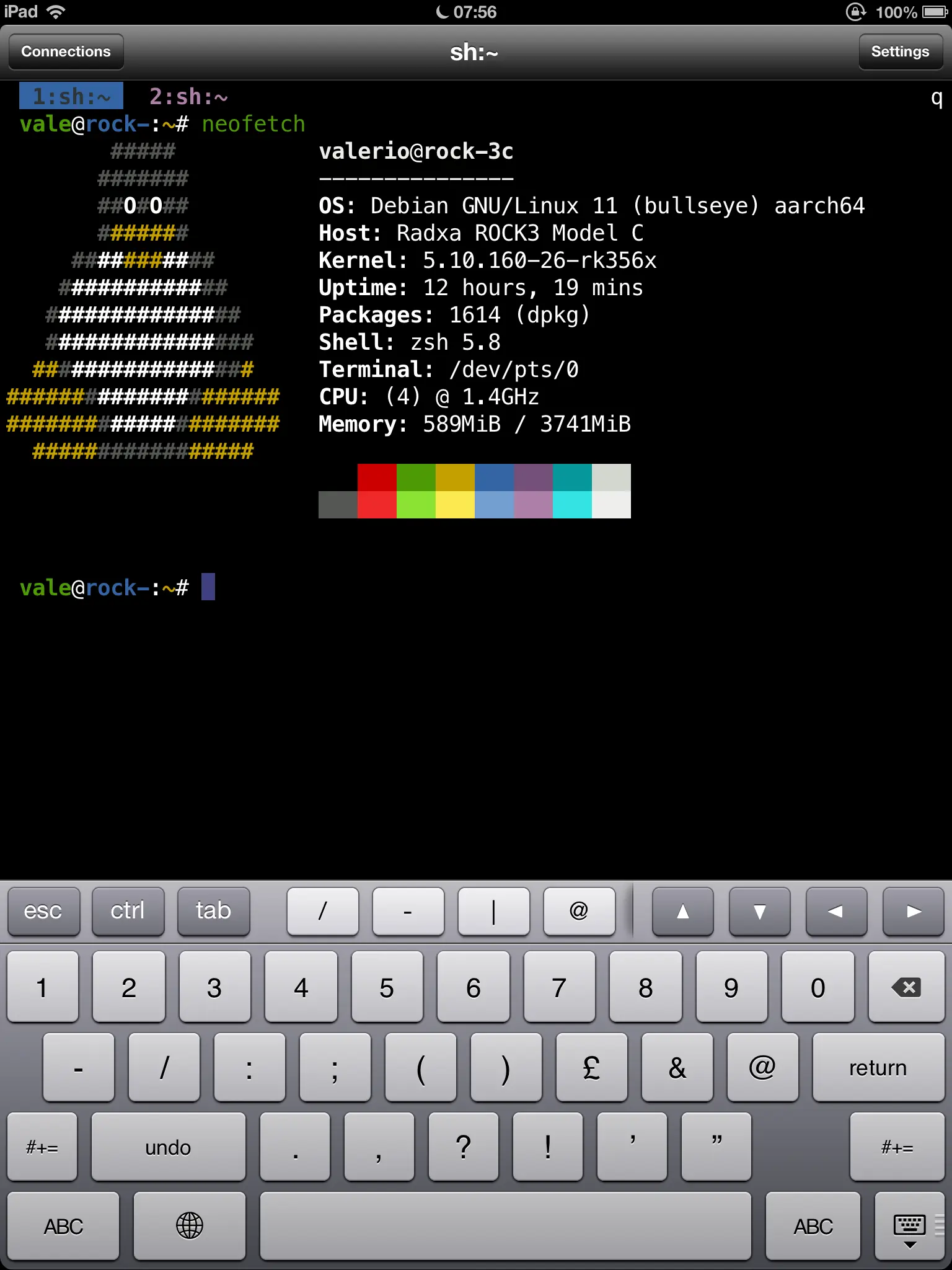
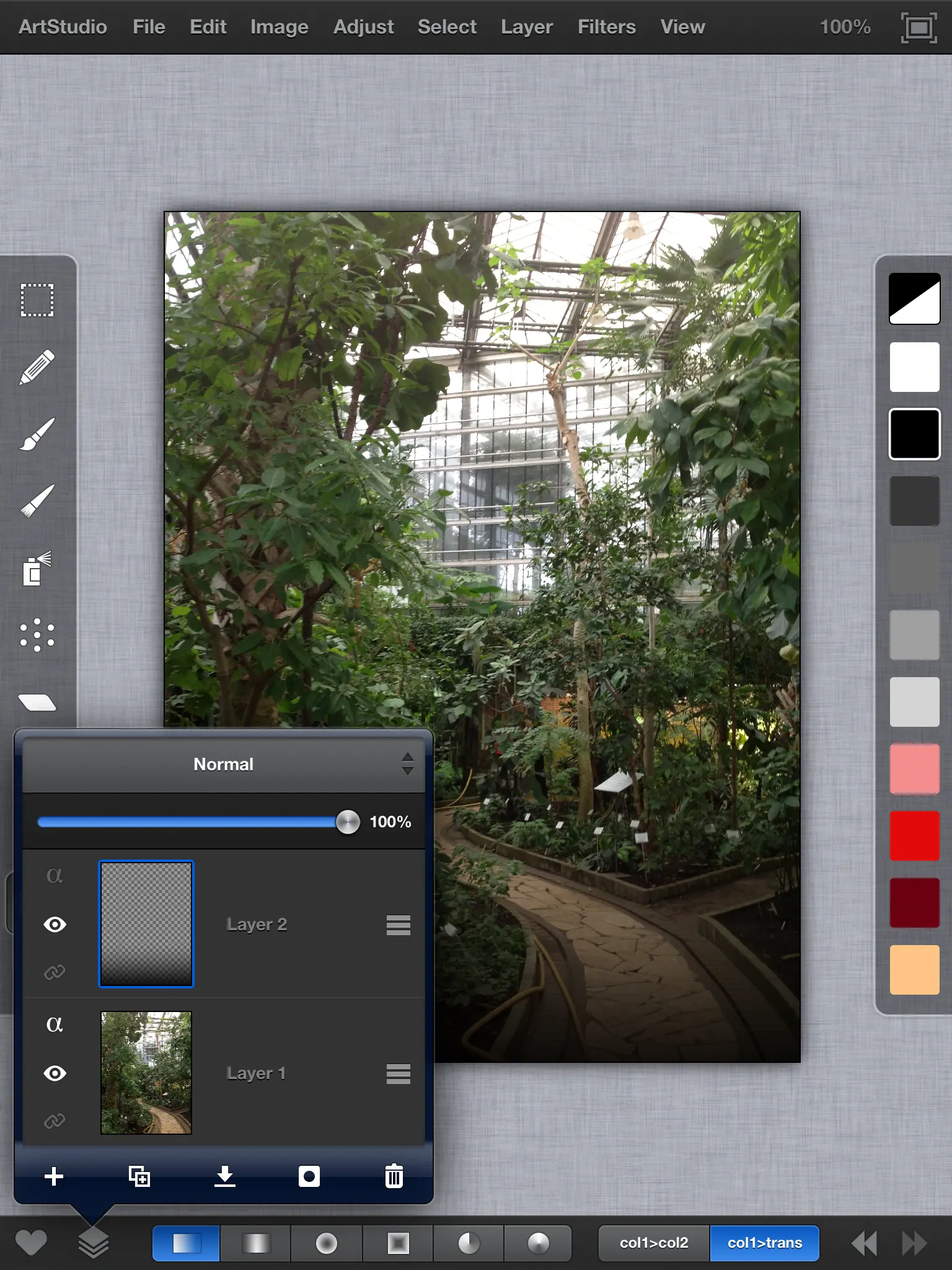
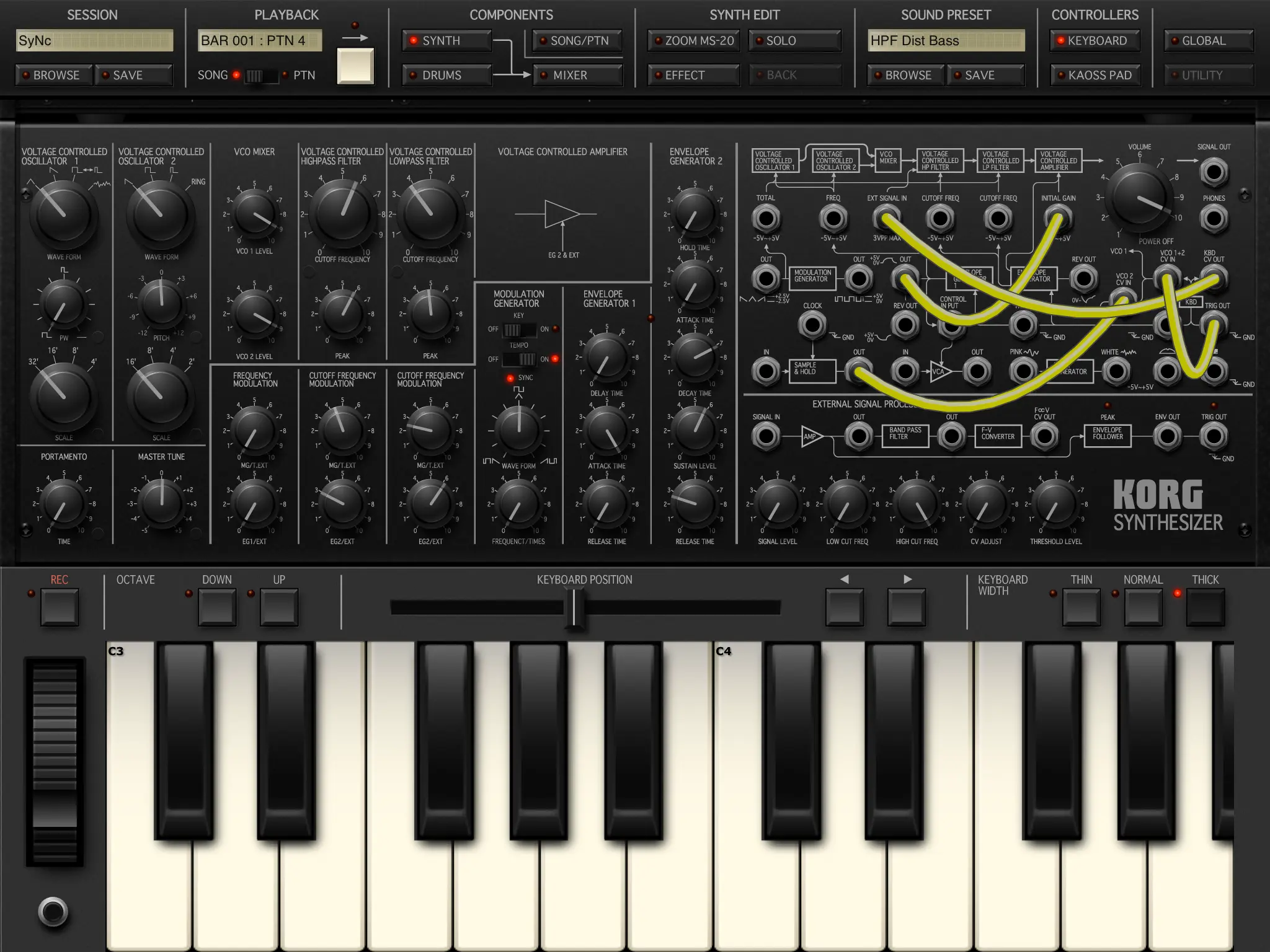
SSHing into the NAS from the Prompt app, first connecting through the SSH loopback.
Remarkable 2 (2020)
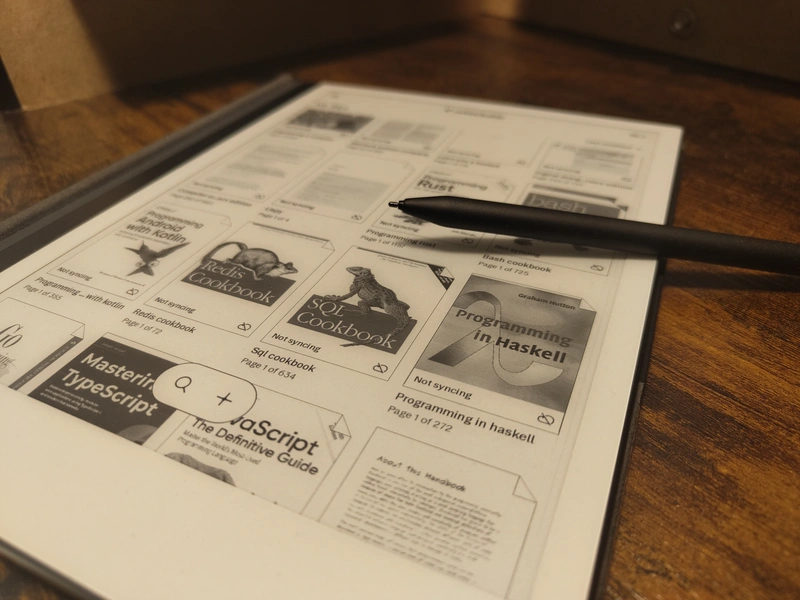
The reMarkable 2 is a different thing when it comes to pricing, as it can cost ~10x what you pay a second hand iPad... second handed!
It is different under almost every angle, starting from the grayscale, low refreshing, paper textured e-ink display. It supports a pencil that is pressure sensitive with 4096 levels, has tilt detection, two tips in the "Plus" version - the main one and an eraser on the back, and doesn't need to be recharged.
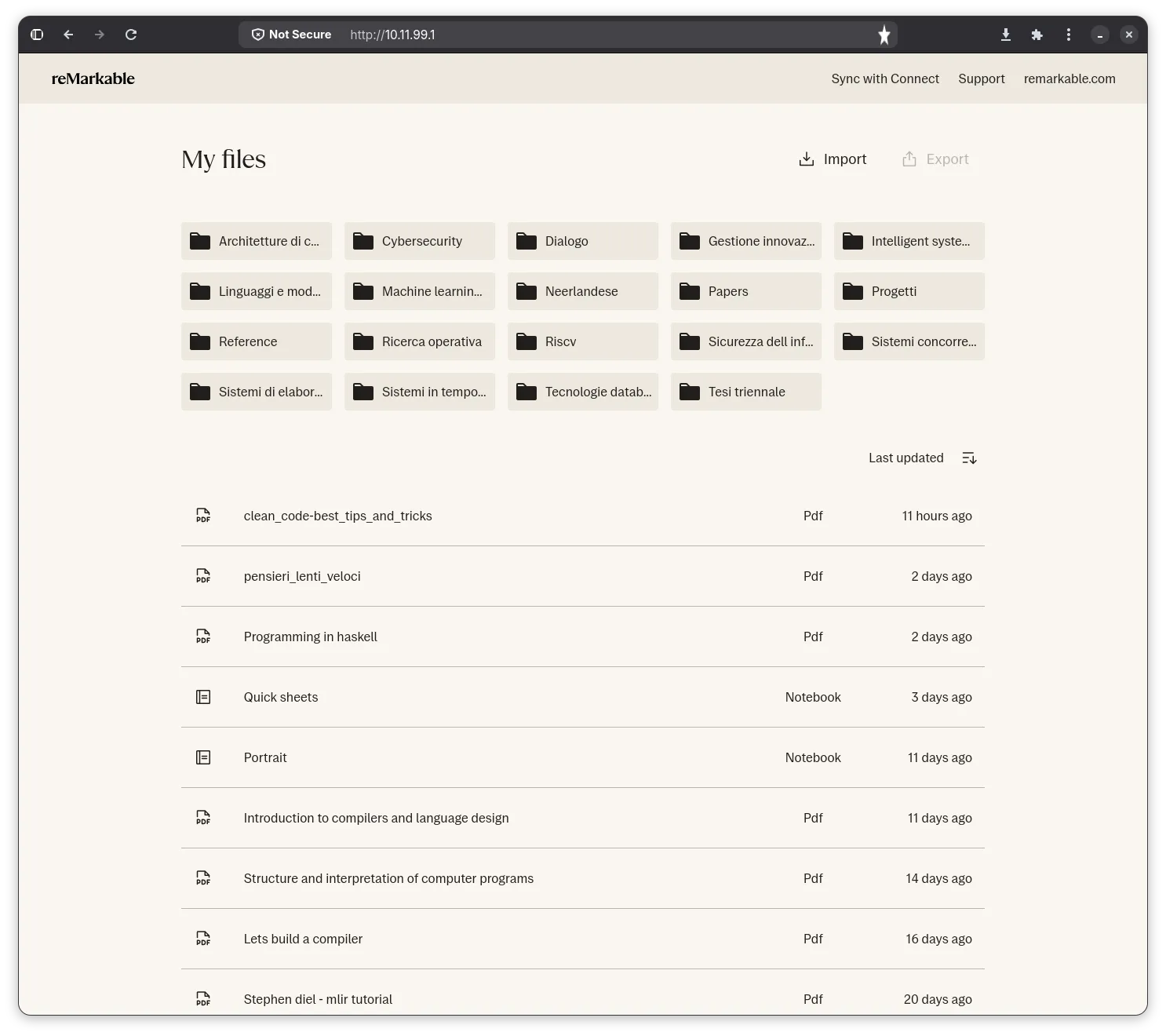
The reMarkable 2 is a hackable Linux computer fitted inside an impressively thin aluminum frame (almost as thin as the USB-C connector it houses on the bottom) that would make Apple jealous. It runs by default an SSH server and gives you the credentials to connect through WiFi, or through ethernet-over-usb at the address 10.11.99.1.
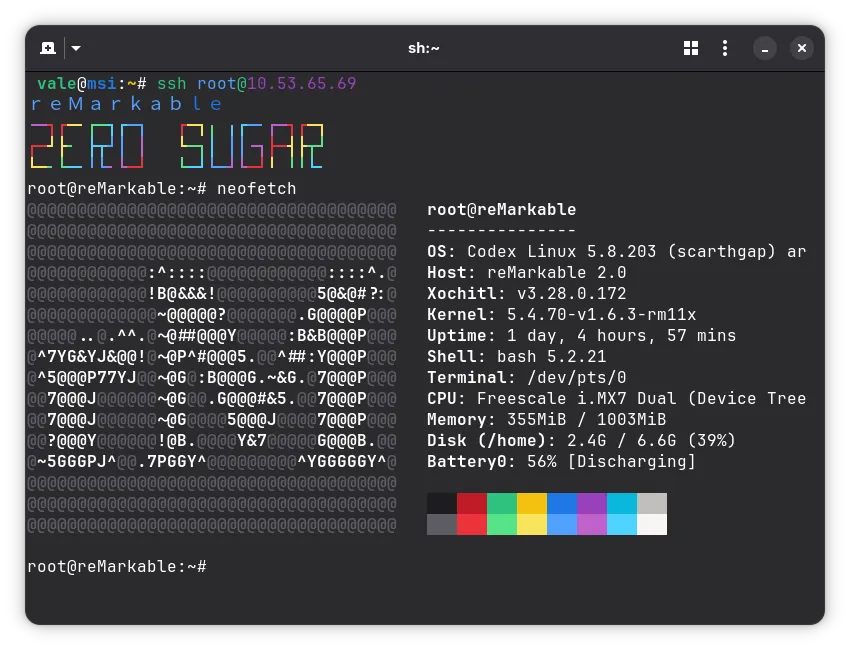
An ssh shell through a WLAN connection
To be fair, another thing that Apple would be jealous of is the reMarkable Connect programme, a 3.99€/mo subscription that the company offers for unlimited cloud storage and other minor features. The device comes with a fixed and non expansible 8GB of storage, with around 6.6GB usable for your documents. We are still talking about PDF files, so the storage size should not be a problem.
And regarding the cloud services, connecting your device to a free reMarkable account will let you also use the included Google Drive integration to import/export files. When it comes to file uploading PDFs I prefer to do so via SSH, without egressing towards the cloud, and using a simple script like one from Mike Riebart that I'm going to attach here, slightly altered, for purposes of conservation.
#!/bin/bash

pdf_fname="$1"
pdf_docname=$(echo "$1" | tr -d '"')
document_uuid="$2"

echo "\"$pdf_docname\" \"$document_uuid\""

if [ $# -lt 2 ]
then
    echo "Must pass PDF name as arg 1, UUID as arg 2, and PDF body on stdin"
    exit 1
fi

cat - > "${document_uuid}.pdf"

metadata_body="{
    \"deleted\": false, \"lastModified\": \"`date -u +"%s"`000\", \"metadatamodified\": false, \"modified\": false, \"parent\": \"\", \"pinned\": false, \"synced\": true, \"type\": \"DocumentType\", \"version\": 1, \"visibleName\": \"${pdf_docname}\"
}"

content_body="{
    \"extraMetadata\": { }, \"fileType\": \"pdf\", \"fontName\": \"\", \"lastOpenedPage\": 0, \"lineHeight\": -1, \"margins\": 100, \"orientation\": \"portrait\", \"pageCount\": 1, \"pages\": [ ], \"textScale\": 1, \"transform\": { \"m11\": 1, \"m12\": 0, \"m13\": 0, \"m21\": 0, \"m22\": 1, \"m23\": 0, \"m31\": 0, \"m32\": 0, \"m33\": 1 }
}"

pagedata_body=""

echo "$metadata_body" > "${document_uuid}.metadata"
echo "$content_body" > "${document_uuid}.content"
echo "$pagedata_body" > "${document_uuid}.pagedata"

for dir_suffix in "" ".cache" ".highlights" ".textconversion" ".thumbnails"
do
    mkdir "${document_uuid}${dir_suffix}"
done

mv $document_uuid.* /home/root/.local/share/remarkable/xochitl/
systemctl restart xochitl
The script transfers the bytes of the file through standard output (maybe that can be improved with scp or utilities alike) and then restarts the Xochitl shell, to display the new document. It is to be put somewhere on the remarkable storage, like /home/root/upload.sh, and ran from a shell of another computer that has the files you want to upload, like so:
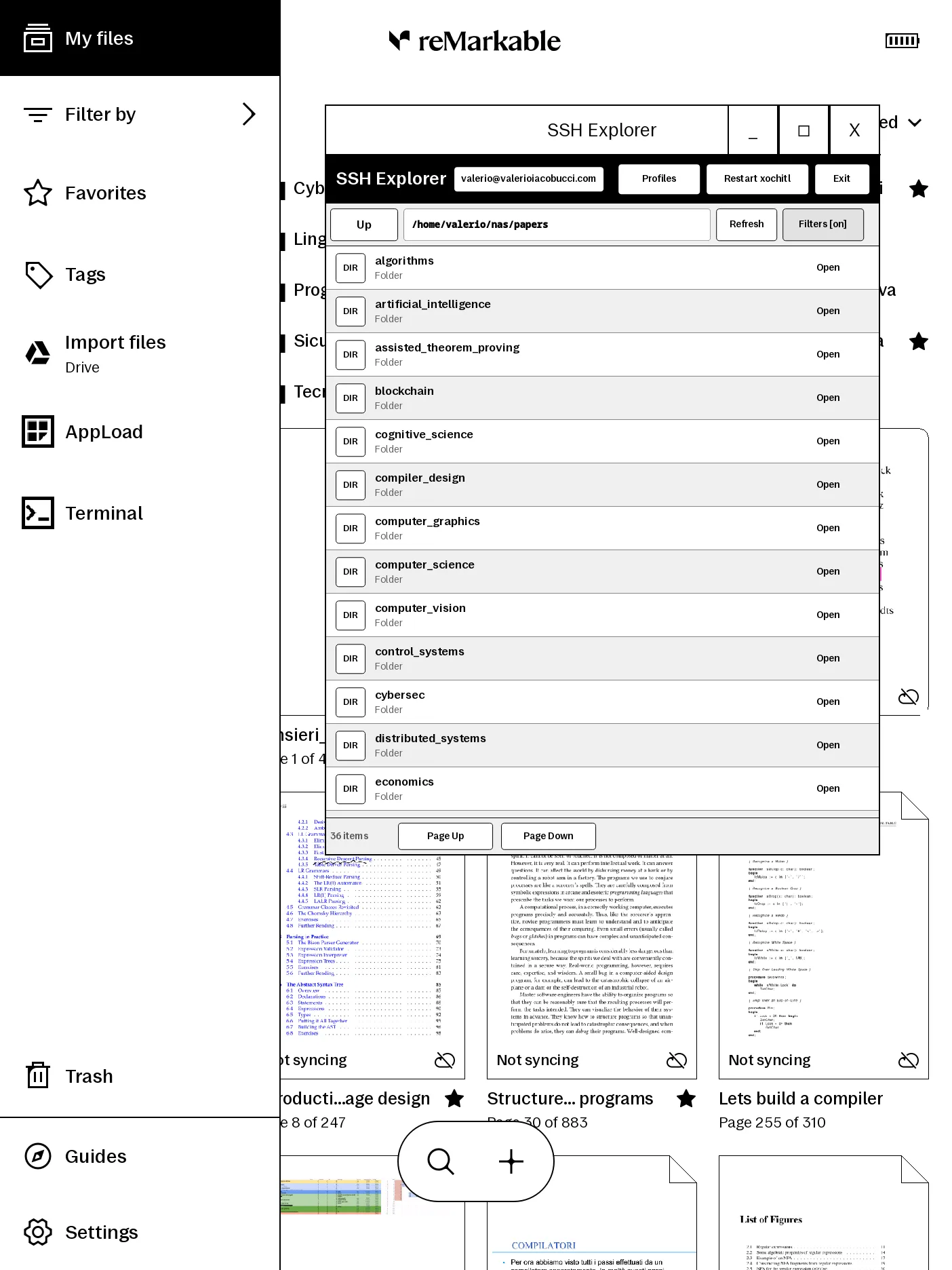
cat $FILENAME | ssh "root@$REMARKABLE" bash /home/root/upload.sh "'$NAME'" $(uuidgen)Where $FILENAME is the name of the file on your computer, and $NAME is how you want to call the file on your Remarkable. This process requires you to be able to contact the Remarkable through its ip address, which could be tricky if the two devices are on different networks. Thankfully there is an amazing framework for on-device applications: Xovi. You can install it through the Vellum package manager or the simpler reManager desktop mod manager. Thanks to it and the Appload application loader, I devised a simple SSH Explorer app.
You can see it here running in a floating window, showing the listing of my vps' ~/nas/papers directory, which is in turn an sshfs mount point referencing my nas (more on the networking details here).
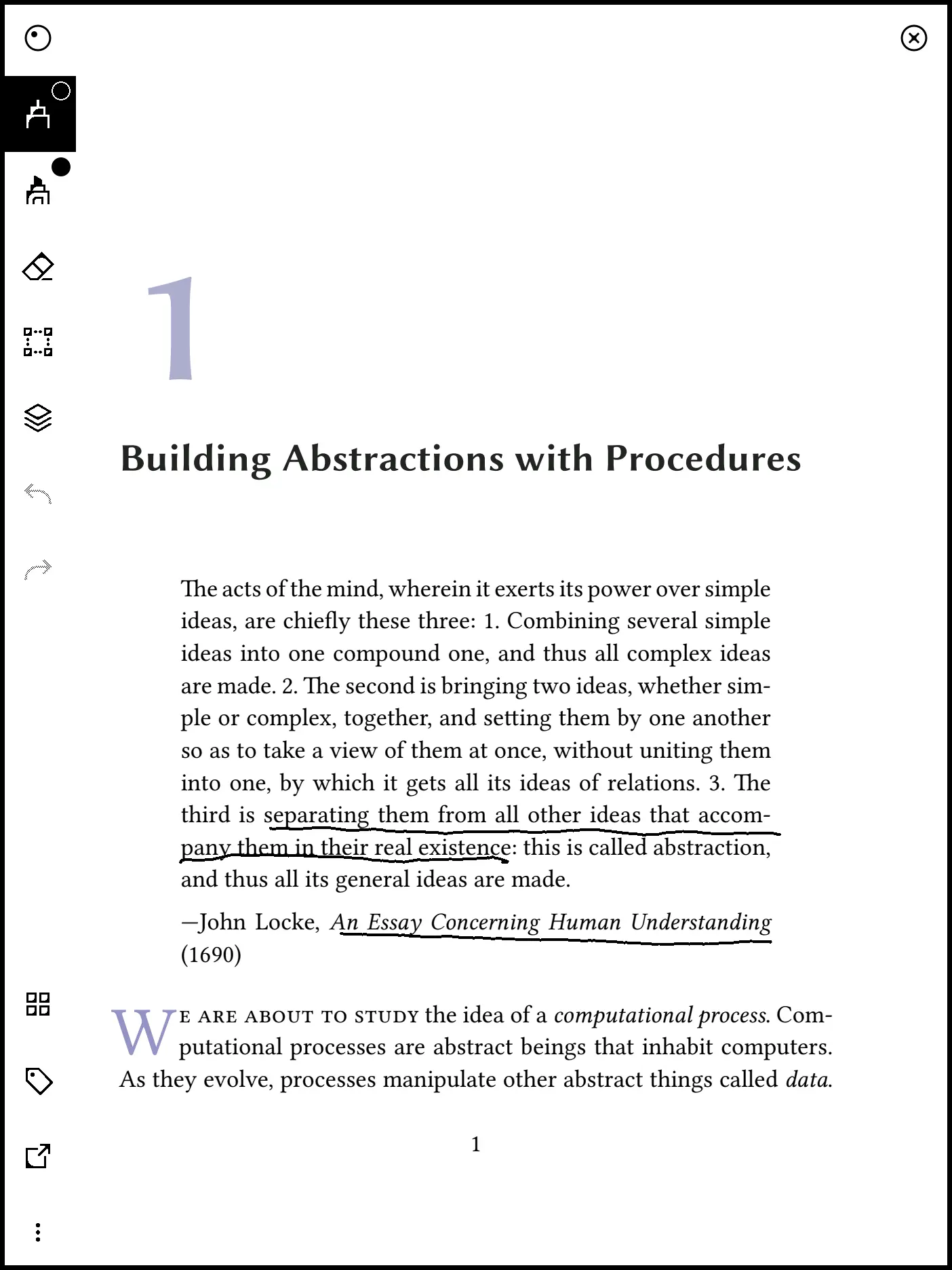
When we finally open a document, we can see that the display is detailed enough that you can read most things without zooming in, and you kind of want to avoid that, because the pinch gesture to enlarge the page is a little obnoxious as the display is not exactly smooth. Also the swipe gestures for going back and forth through pages are tedious, and the removal of physical buttons from the reMarkable 1 is a a keenly felt absence. The full text search feature is present, but the slow ARMv7 processor will have you waiting before you find a match.
But I've got to say that all things considered reading PDFs and taking notes is a pleasure on the reMarkable 2. The battery lasts forever and you can bring only your phone's charger to juice it up. The screen is just perfect to stare at while studying and the pen is extremely precise, so much so that it makes the reMarkable 2 not only a document consumption device, but also a creation device. You shouldn't expect to use it as an artsy drawing tablet (even if you can use it as a pressure sensitive input device together with a desktop computer thanks to the reMousable project), but i would say it goes to a fair distance when it comes to technical sketching.
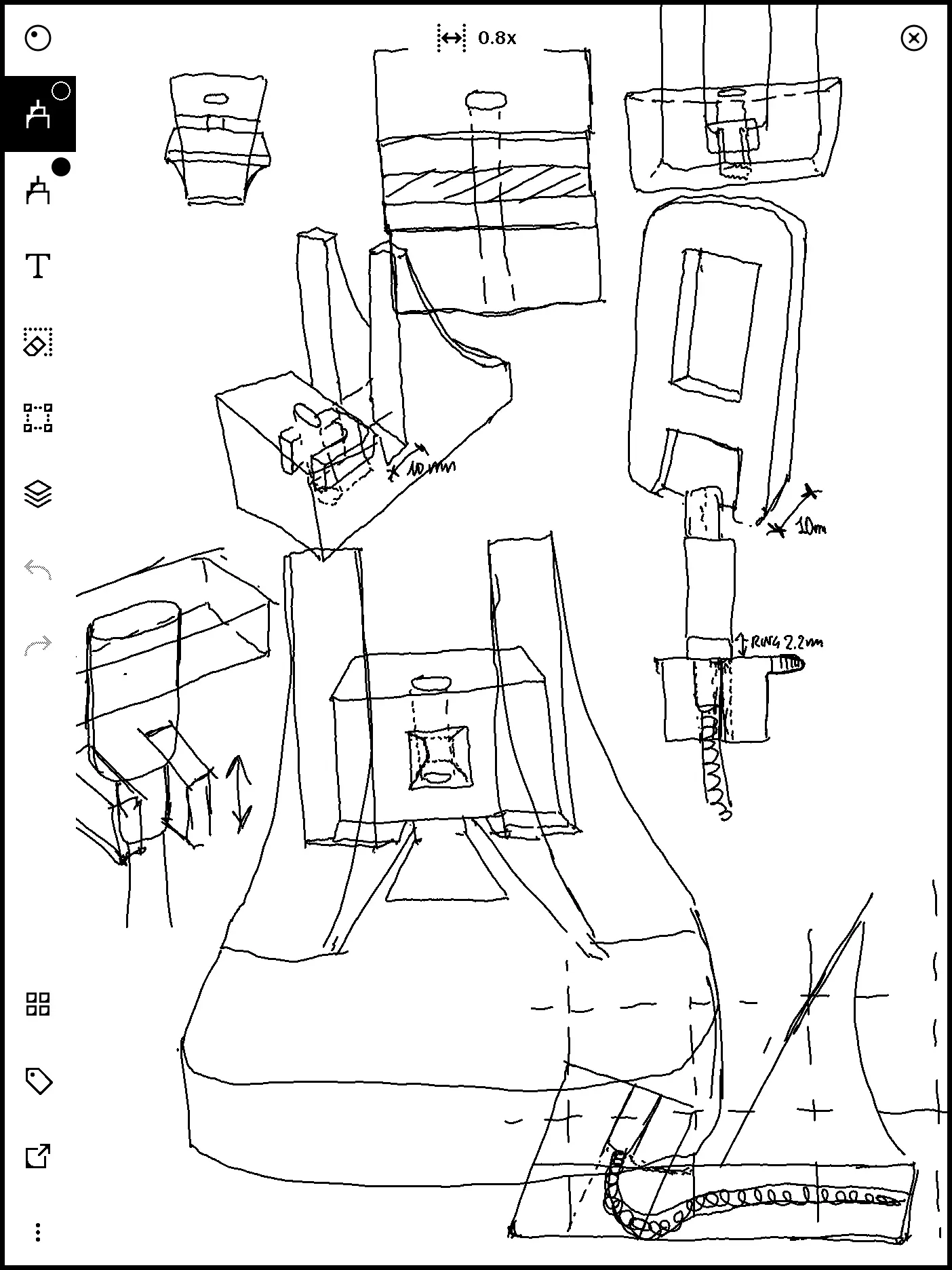
A sketch for a smartphone charging stand, drawn with the "Fineliner" tool
Conclusion
A summary table is presented
| iPad 3rd | reMarkable 2 | |
|---|---|---|
| cost | ~30€ on eBay | ~250€ on eBay |
| display | Stunning 4:3 2048x1536px LCD with 24 bit color depth | Stunning 4:3 1872x1404 e-ink with 4 bit color depth and dithering for extended shading |
| battery | 11560mAh for ~10 hours of screen time, and strictly requires 15W for charging | 3000mAh for ~1 week of use |
| connectivity | 30-pin cable (that always breaks), SSH with old KexAlgorithms | USB-C, SSH, ssh-explorer other integrations |
| storage | ~6.5GB | ~6.5GB |
| Interaction | Smooth multi-touch | Laggy multi-touch and amazing pencil |
| community support | Legacy apps and tweaks | Open source developer community |
| weight | ~650g | ~400g |
In the end an iPad 3 could be one of the cheapest tablets you can find on the second hand market. It is a beautiful device to bring in tight backpacks and to treat without too much care, because it's built like a tank and you wouldn't mind it it scratched a bit. The reMarkable 2 is definitely not the cheapest tablet with a pen (you can do way better with a second hand iPad 9th and an aftermarket compatible pencil) and you should care to treat it with attention for how thin and brittle it is, but is an awesome device that saved me in all my recent engineering exams sessions.